
Task 0
Testing Setup
This document contains instructions to test the OS Compatibilty, Compiler, Python version, and installation of CoppeliaSim Now, follow the steps below for successful testing of the setup.
Prior Setup
-
Make sure to keep the following software Up and Running before going ahead with the testing of Task 0.
- Coppeliasim
Test the Setup
-
Open new Terminal
-
Check if pip is installed on your system
pip --version-
You will see something like this
pip 22.3 from /usr/lib/python3/dist-packages/pip (python 3.10)
-
If pip is not present on your system, you can install it using the command given below.
sudo apt install python3-pip
-
-
Install eyantra-autoeval by running the command given below.(Make sure that you are in eLSI sprint env)
pip install -U rich click distro psutil eyantra-autoevalNote: Make sure the Coppeliasim is running in the background
-
Run this command to generate a result file.
eyantra-autoeval evaluate --year 2026 --theme sprint1 --task 0
- If you are facing issues for Ubuntu :
- If you face an error saying eyantra-autoeval not found, then you need to add the following line to your ~/.bashrc file:
export PATH=$PATH:~/.local/bin - Then, run the following command to update your ~/.bashrc file:
source ~/.bashrc - Then RUN the above commands again.
-
-
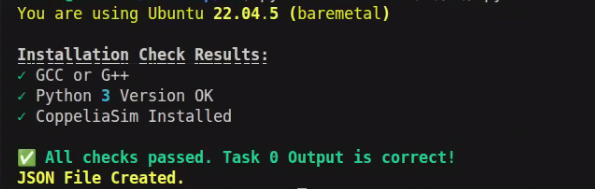
This test file checks whether all the software / plugins are installed with their latest version. If everything is as expected, you will get the message: ✅ All checks passed. Task 0 Output is correct!
-
You will see output similar to one shown in Figure 1.
-
With this message, a json file
result-xxxx-xxxxx.jsonwill be generated in the same directory. This file contains data in an encoded format. It is suggested to not play or modify this file, else your Task 0 will fail during the automatic evaluation. Also, do not rename the file.-
For example, the
result-xxx-xxxxx.jsonfile will be generated in the directory from which you ran theeyantra-autoevalcommand in the terminal. If you opened the terminal in your home directory, the file will be located at:- On Ubuntu:
/home/<your-username>/result.json - On Windows:
C:\Users\<your-username>\result.json
To check the current directory of your terminal, you can use the command
pwd(Ubuntu) orcd(Windows) before running the evaluation command. - On Ubuntu:
-
-
Before submitting, you need to compress the
result.jsonfile into a.ziparchive. Zip the file directly — do NOT place it inside a folder and then zip the folder, as this will cause the automatic evaluation to fail.- On Ubuntu: Right-click on
result.json→ select Compress... → choose .zip format → click Create. Alternatively, run the following command in the terminal:zip result.zip result-xxx-xxxx.json - On Windows: Right-click on
result.json→ select Compress to → Compressed (zipped) folder.
Note: When the
.zipfile is opened,result.jsonmust appear directly inside it — not nested inside any subfolder.
- On Ubuntu: Right-click on
Submitting Task 0 Test Setup Output
-
Open Task 0 page on the eLSI Sprint Portal, click on the button below.
-
For successful completion of Task 0 Test Setup, upload the
result.zipfile on the portal. -
Select Choose file button to upload the file. From the dialog box, select the file and click Open.
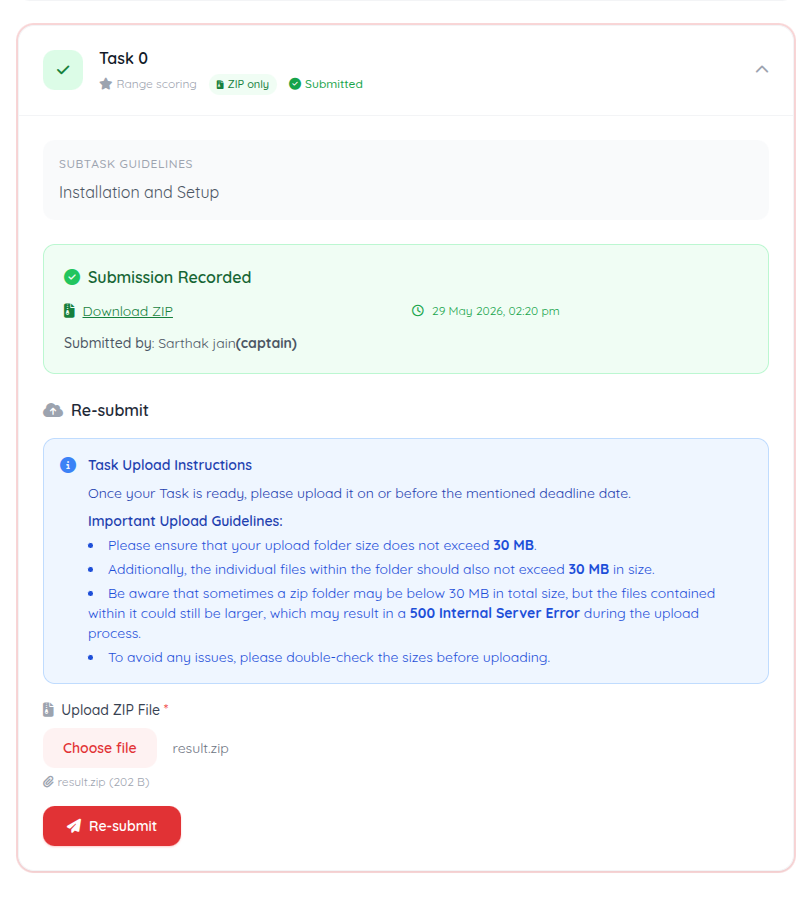
- You shall see the file name
result.zipin text-box besides the Upload button as in Figure 3. Click on Submit Task button to submit the zip file.
Note: After submission, the portal may display the status as "Evaluation Pending" for 2-3 days. This is normal — your submission is queued for automatic evaluation. Please do not resubmit during this period. The status will update once evaluation is complete.
- Congrats, you have successfully completed Task0 Setup!